
How-to video · 1 min 10 s
How to invite your team to share your records.
Invite a manager or member of staff by email. They tap the link in the email, accept, and record checks in the same business straight away, on iPhone or Android.
Works the same on iPhone and Android.
Step by step
How to invite your team, in words.
01 Your phone
Open Invite team
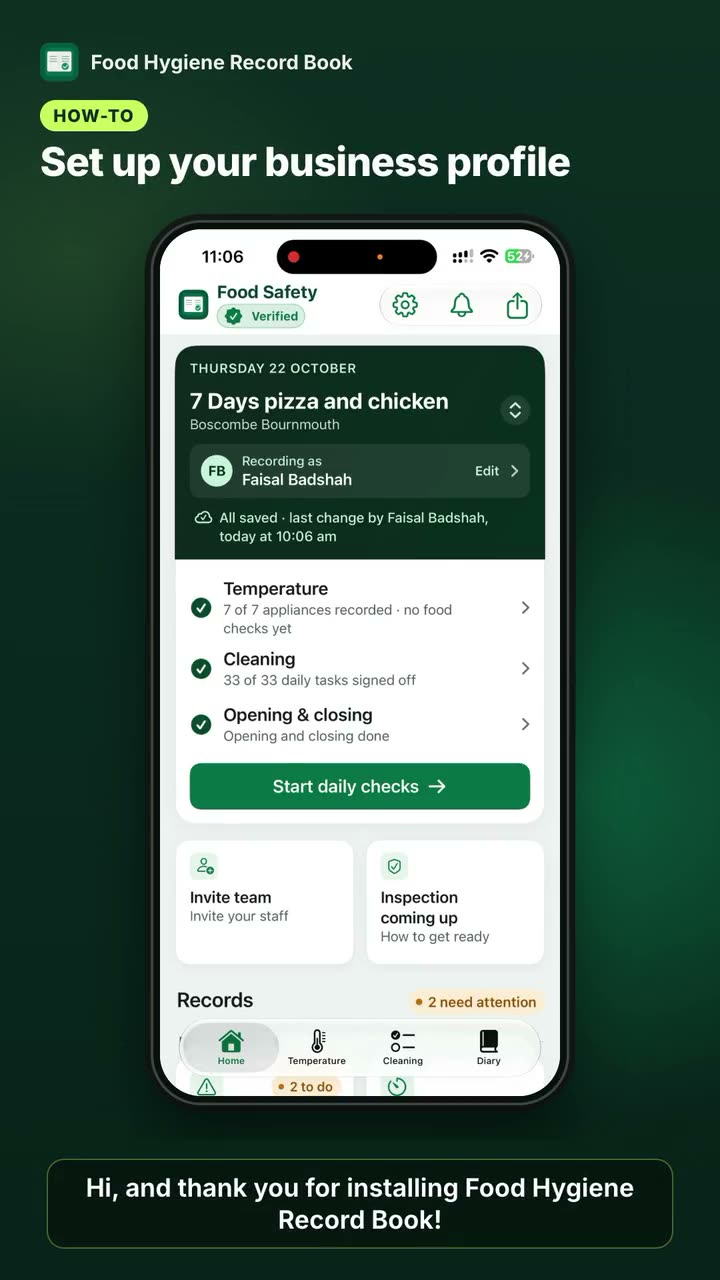
On the Home screen, tap Invite team.
02 Your phone
Invite a team member
Tap the green button, Invite a team member.
03 Your phone
Add their email
Type your colleague's email address and check their permissions, for example Manager.
04 Your phone
Create the invitation
Tap Create invitation. The invite then shows as Waiting to join, and your colleague gets an email.
05 Their phone
Open the email
Your colleague opens the email from Food Hygiene Record Book.
06 Their phone
Tap Join
They tap the Join button, which shows your business name, for example "Join Riverside Café".
07 Their phone
Accept and join
In the app, they tap Accept and join. That's it: they're in your team straight away.
Inviting your team needs Plus, either bought in the app or given by us. See the plans and prices.
Read what the video says
Hi, and thank you for installing Food Hygiene Record Book. Today I will show you how to invite someone from your team. Let's start.
On the Home screen, tap Invite team. Now tap the green button, Invite a team member. Type your colleague's email address, then tap Create invitation.
Below, you will see the invite marked Waiting to join. Your colleague will get an email asking them to accept.
Here's the other phone. The email from Food Hygiene Record Book has arrived. Tap Join with your business name. Tap the Accept and join button.
That's it. They're in your team straight away. Thank you for watching.
Keep watching
More how-to videos
Still stuck?
We're happy to help.
Message us on WhatsApp or email support@foodsafetyrecords.co.uk. Or use Send feedback in the app's Settings.