
How-to video · 1 min 12 s
How to create an inspection report.
When an officer asks for your records, put them all in one report. Choose the dates and the sections, view it, and share it by email, WhatsApp or any app.
Works the same on iPhone and Android.
Step by step
How to create an inspection report, in words.
01 Open
Open the report
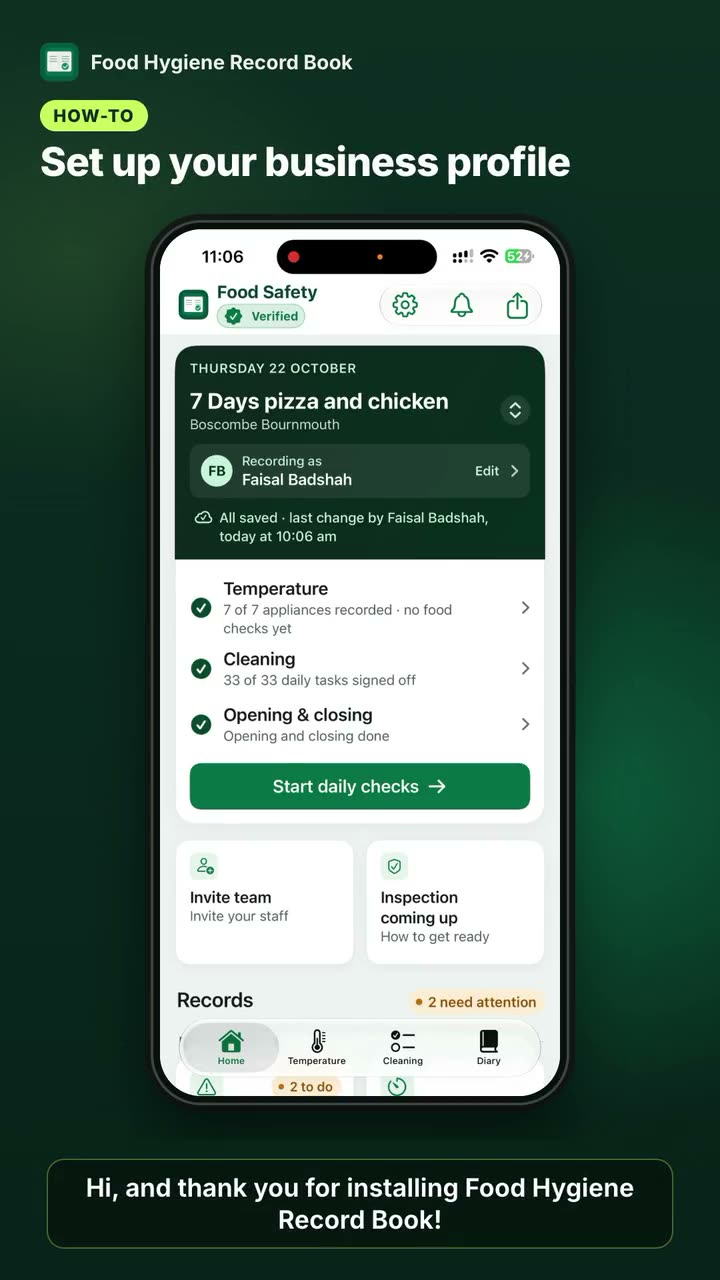
On the Home screen, tap the button at the top right. The inspection report screen opens.
02 Dates
Choose the period
Pick the last 7 days, the last 4 weeks, this month, all saved records, or a custom range.
03 Sections
Pick what to include
Scroll through the sections and switch off anything you don't need, for example the accident book or fire safety records.
04 View
View the report
Scroll down and tap View report. All your records are in one place.
05 Share
Share it
Tap the button at the top to share the report by email, WhatsApp or any app you like.
Read what the video says
Hi, and thank you for installing Food Hygiene Record Book. Today I will show you how to create a report. Let's start.
Tap the button at the top right. A new screen pops up. First, choose the period you need: the last four weeks, this month, all saved records, or a custom range. I will choose all saved records.
Scroll down. There are lots of sections. Switch off anything you don't need. For example, I don't need the accident book, or fire safety records. Scroll down and tap View report.
Your report is ready, with all your records in one place. Share it: tap the button at the top to share it by email, WhatsApp or any app you like. Thank you for watching.
Still stuck?
We're happy to help.
Message us on WhatsApp or email support@foodsafetyrecords.co.uk. Or use Send feedback in the app's Settings.